Trueleveler for iPhone
The field side of the platform, in your pocket: daily logs, annotated photos, punch, RFIs, offline drawings, progress painting, and scaled field sketches — plus meeting recording on the go. Everything syncs into the same project memory your office runs on. Now on the App Store.
Daily logs
File the day's log from the slab — crew, weather, work performed, delays — before you leave the gate.
Photos + annotation
Capture jobsite photos and mark them up with arrows, callouts, and dimensions before they hit the record.
Punch list
Walk the unit, add punch items with photos, and assign them on the spot.
Field RFIs
Raise an RFI from the field with the photo and sheet reference already attached.
Drawings + offline
Carry the current set with you. Save sheets for offline and keep working where there's no signal.
Progress painting
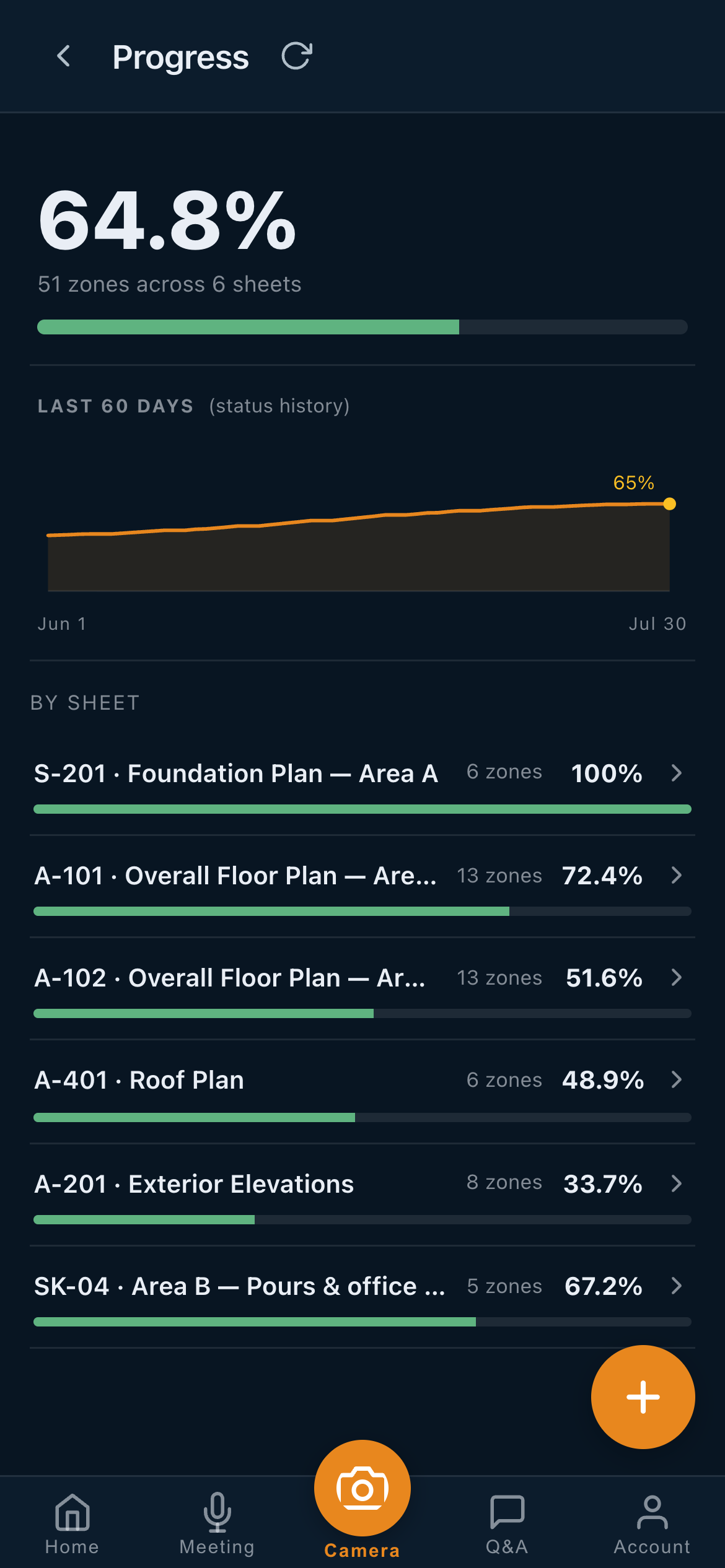
Open the Progress tile and paint what's installed on the sheet — percent complete updates for the whole team.
Scaled sketches
Start a field sketch from the Sketch tile — true architectural scale, snap grids, real-unit dimensions.
Photo pins to records
Pin a photo on the plan and turn it into an RFI, punch item, task, or safety record in two taps.
Meeting notes
Record a site walk or OAC on your phone — transcribed minutes and action items file to the project.
Trueleveler Meetings for desktop
Record the whole call — system audio and your mic — and get transcribed notes and action items filed straight to your project. Works with Teams, Zoom, and Meet.
Download & run the installer
Open the downloaded file and follow the prompts. Trueleveler Meetings installs to your Start menu and desktop.
Sign in
Use your Trueleveler email and password — the same account as the web app.
Record your next call
Start a Teams, Zoom, or Meet call and Trueleveler offers to capture it. Review the notes, then file them to a project.
If Windows or your browser warns you — it’s safe to continue
The installer isn’t code-signed yet, so you may see one or two prompts:
1. While downloading (Edge or Chrome): if it says the file “isn’t commonly downloaded,” choose Keep → Keep anyway.
2. On first run: if you see “Windows protected your PC,” click More info, then Run anyway.
We’re setting up the publisher certificate that will remove these prompts.
On a Mac? The app is signed & notarized by Apple, so it opens normally — just drag it to Applications and launch it. Allow Microphone and Screen Recording when asked — Screen Recording is what lets it capture the call audio.